How to customize GitHub Copilot in VS Code for professional development: practical experience
In this article, our author will share the methods they personally use to configure Copilot and provide a step-by-step guide for quickly implementing custom instructions.
Author - Mansur Ismagulov
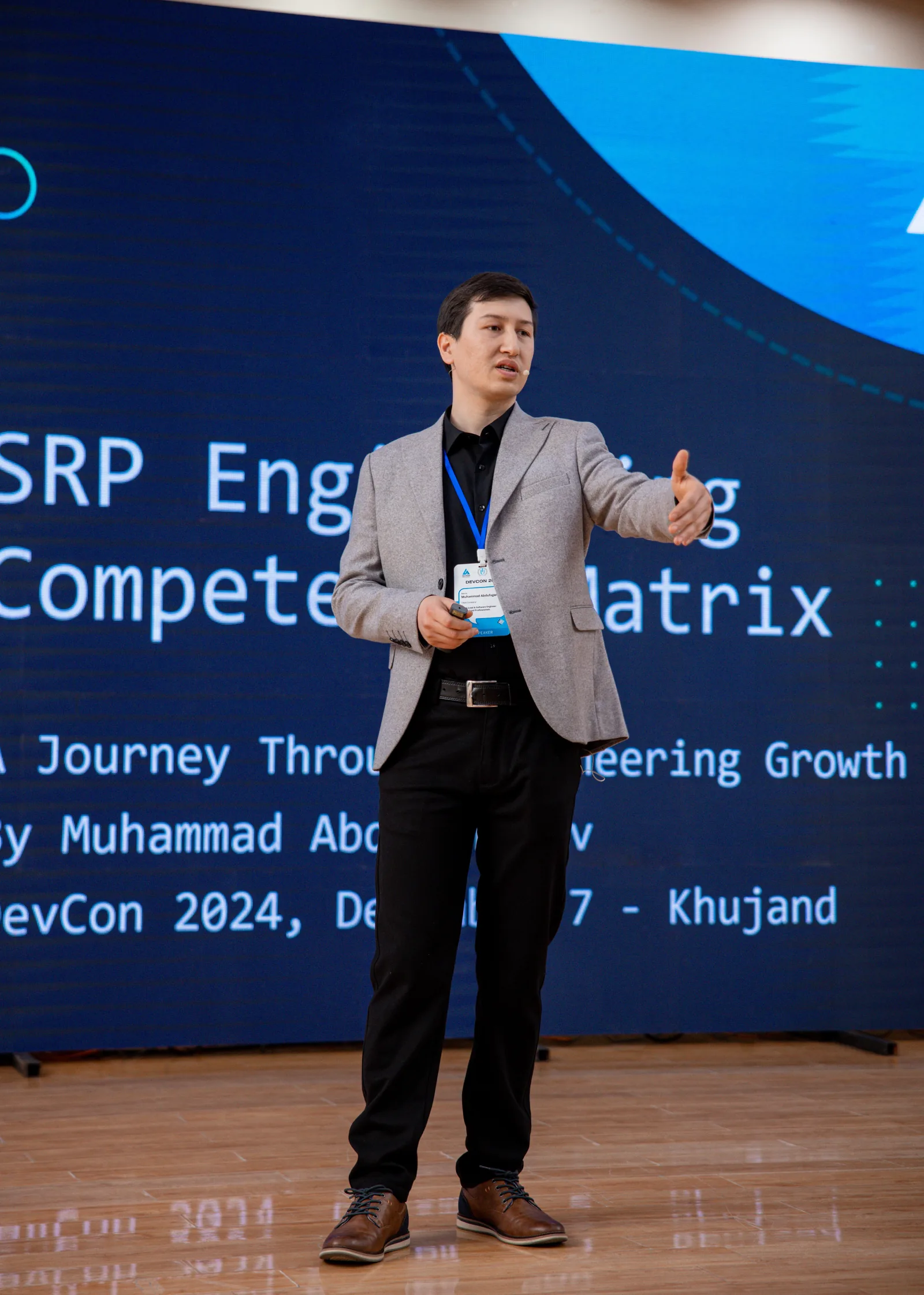
Muhammad Abdugafarov, city — Khujand, team lead, programmer at Silk Road Professionals, LinkedIn
GitHub Copilot has become an integral part of my workflow in VS Code, especially after the emergence of advanced customization capabilities. Now, any developer can adapt Copilot's behavior to the specifics of the project and team — and this truly impacts code quality, routine automation, and team standardization.
Why Copilot customization is important
When working on multiple projects or in a distributed team, it is important that the AI assistant not only generates "correct" code but also takes into account your standards, architectural decisions, and stylistic rules. Thanks to Copilot customization, I can set clear instructions that are automatically applied to every chat and code generation. This saves time on code review, reduces the number of bugs, and helps new team members adapt faster.
Why Copilot customization is especially important for generation quality
The quality of code generated by Copilot directly depends on the context the AI receives. Of course, you can manually add your standards and rules to each request — for example, reminding Copilot about naming conventions, formatting rules, or the specifics of your project's architecture. But doing this manually for every request is inconvenient and quickly becomes tedious.
Here, Copilot customization becomes a key tool: thanks to instruction files and settings, your rules and standards are automatically loaded into the context with every interaction with Copilot. You no longer need to manually repeat the same requirements — the AI will always take them into account when you ask a question or set a task. This ensures that every code generation will meet your expectations and team standards.
Main customization capabilities
1. Instruction Files
.github/copilot-instructions.md — a single file with project standards that is automatically applied in all Copilot chats.
.instructions.md — separate instructions for specific tasks.
Support for different levels: workspace, user, separate folders for team or personal instructions.
2. Custom instructions in settings
In VS Code, you can configure instructions for different scenarios:
— code generation: github.copilot.chat.codeGeneration.instructions
— test generation: github.copilot.chat.testGeneration.instructions
— code review: github.copilot.chat.reviewSelection.instructions
— commit messages: github.copilot.chat.commitMessageGeneration.instructions
3. Prompt Files, experimental feature
— creation of reusable .prompt.md files for typical tasks
— support for variables and file links
— files can be shared between projects and teams. For example, a template for generating a React form, a security guide, onboarding instructions.
4. Best practices
— keep instructions short and specific
— use multiple files for different topics and tasks
— store instructions in a version control system — this facilitates collaboration
— use the applyTo property to apply instructions only to the required file types.
— include links to external guides and documentation directly in prompts.
Step-by-step guide to Copilot customization
- Enable customization support in VS Code settings
Open settings and activate the options: chat.promptFiles and github.copilot.chat.codeGeneration.useInstructionFiles - Create a file with project rules
In the root of the repository, create .github/copilot-instructions.md with the main standards. For example, "use async/await". - Add specialized instructions
For individual tasks, create .instructions.md files in the .github/instructions/ folder. For example, a separate file for React, another for tests. - Configure custom instructions via VS Code
In the settings, specify your requirements for code generation, tests, review, and commits. - Optionally — use Prompt Files
If you need to automate typical tasks — create .prompt.md files and connect them in the settings. - Control versioning and share files
Store all instructions and prompts in the repository — so the team always works by the same rules.
GitHub Copilot pricing
GitHub Copilot is a paid service. At the time of publication:
Copilot Individual: $10 per month or $100 per year per user.
Copilot Business: $19 per month per user, includes advanced security, management, and integration features.
Current prices and terms should be verified on the official GitHub Copilot website.
GitHub Copilot alternatives
There are alternatives to GitHub Copilot on the market that also support customization and their own usage scenarios. For example:
Cursor — a modern AI-IDE with support for custom prompts and integrations.
Windsurf — an autonomous AI code assistant that also allows configuring behavior to suit team tasks.
The functionality and approaches to customization in these solutions may differ from GitHub Copilot, so it is worth testing several options and choosing the one that best fits your tasks.
Personal model choice
At the moment, my top model for code generation and text work is Claude Sonnet 4. It shows excellent results in quality, speed, and understanding of task context, especially with complex requests and working with large volumes of code.
Conclusion
GitHub Copilot customization is not just a setting, but a tool for improving development quality and speed. From my own experience, I can say that properly formatted instructions save hours on review and help keep the codebase clean. If you haven't tried it yet — start small, gradually adding new rules and templates as the project grows.
You can learn more about AI tools for developers in the repository of my AI tools for developers seminar.
For details, I recommend the official documentation.
The Tech on Telegram Follow The Tech on Telegram
Keep up with the latest technology and startup news.
Related reading






More from this author

News
zypl.ai begins operations in Japan and focuses on next-generation risk models
Mansur Ismagulov

News
Elon Musk's net worth has exceeded $700 billion for the first time
Mansur Ismagulov

Article Interviews
"Central Asian countries should build a joint ecosystem," — Bekhzod Ismoilov on the development of AI in the region
Mansur Ismagulov

Article Interviews
Bloom's Taxonomy and Engineering Levels: A Practical Growth Model
Mansur Ismagulov

Article Useful
How the IT industry in Azerbaijan developed in 2025: key events
Mansur Ismagulov

News
Tajikistan has become a new member of the regional innovation alliance Central Asian Innovation Hubs.
Mansur Ismagulov