Microsoft Teams will automatically track employee office presence via Wi-Fi
Microsoft has launched a workplace check-in feature via Wi-Fi for Microsoft Places and Teams. Now, the location status updates automatically when connected to the corporate network.
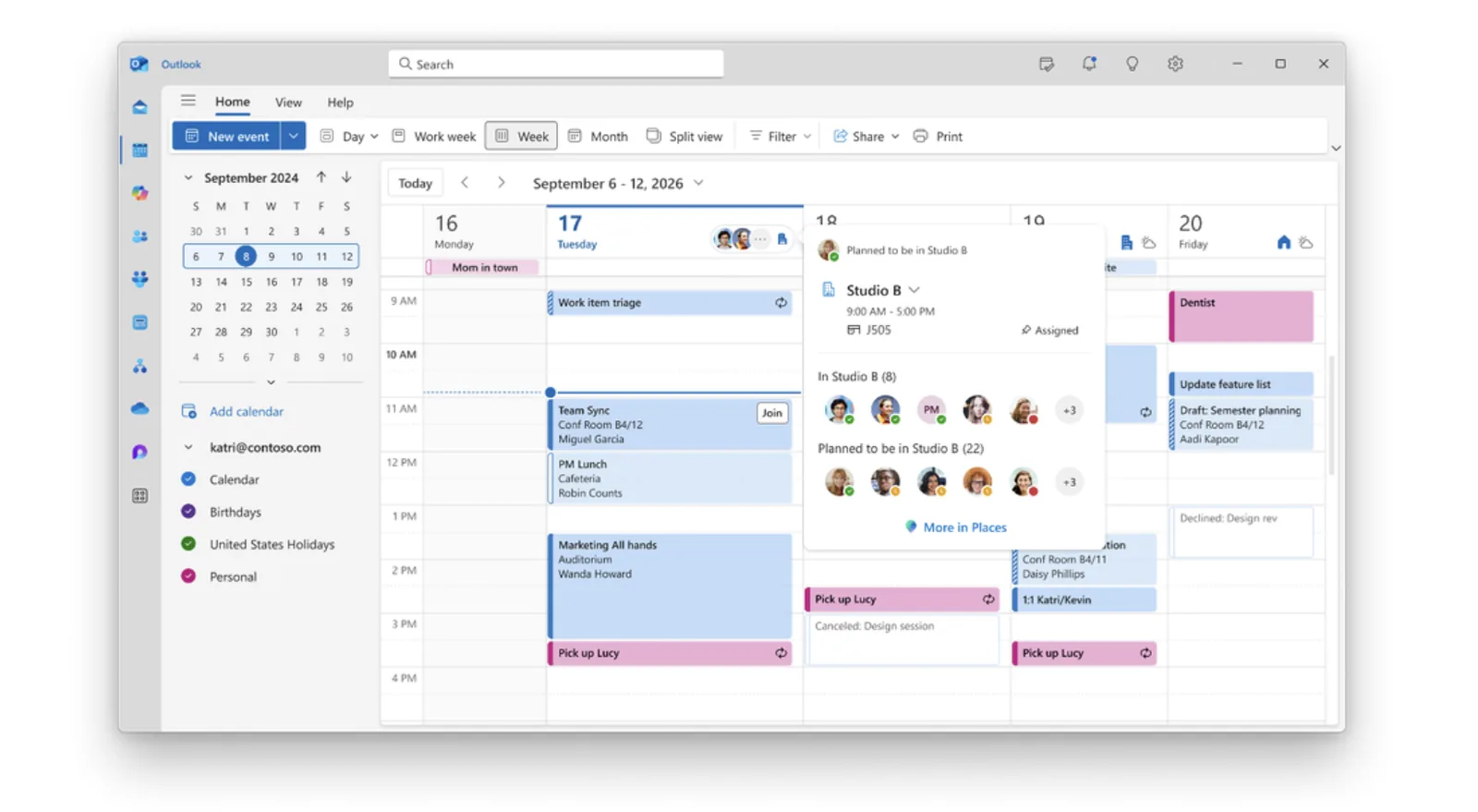
What is it
Microsoft has added a new feature to Teams and Places — automatic office presence detection via Wi-Fi. When an employee arrives at the office and connects their laptop to the corporate network, their work status updates without any manual action.
The feature complements existing Microsoft 365 signals: calendar availability and activity status in Teams. Now, colleagues can see who is physically in the office right now — to arrange a meeting, book an adjacent desk, or switch a call to an in-person format.
A similar principle already works in check-in via peripherals: the status updates when an employee connects a monitor or docking station to corporate equipment. Wi-Fi check-in extends this capability — without the need for a wired connection. If a desk reservation exists, the function can automatically confirm it as active.
Who and how controls the data
The feature is built on a two-level consent model. The organization decides whether to enable it in its corporate environment and configures the list of office Wi-Fi access points. Then, each employee decides independently whether the function runs on their device. If location settings are disabled, the function does not activate, even if the organization has enabled it.
Microsoft highlights three important points:
— movement data is not stored: location is a real-time signal, not a historical record
— the signal is generated only when connecting to configured corporate networks via the Teams client. If the device is not on the corporate network, the status is displayed as Remote
— visibility of the status to colleagues and the use of the check-in function itself are two separate decisions, each configured independently by the employee.
How to prepare
Wi-Fi check-in for Microsoft Places will be available in organizations later this year. Microsoft recommends that IT administrators prepare the corporate environment in advance.
The process involves three steps. First, ensure that Microsoft Places is configured in the corporate environment and that building information has been added to the Places directory. Second, enable the workplace location detection policy in Teams and configure approved corporate Wi-Fi access points. Third, inform employees about the new feature in advance: how it works, what data it does not collect, and how to manage personal settings.
The Tech on Telegram Follow The Tech on Telegram
Keep up with the latest technology and startup news.
Related reading



More from this author

Article Useful
How to protect your accounts from hacking: 8 settings you should check today
The Tech

Article Useful
500 Global: How the Accelerator Works and Who Can Receive Investments
The Tech

Article Interviews
Game Development in Central Asia: Arkady Moldavski on Developing Reverb and the Growth of the Industry
The Tech

Article Useful
Google, Tesla, BlackRock, and the IMF: Where to Apply for an Internship in Fall 2026
The Tech

News IT
Tesla unveiled the flying electric car Roadster
The Tech

News IT
Intero Biosystems startup won the Startup Battlefield at TechCrunch Disrupt 2026
The Tech