How to protect your accounts from hacking: 8 settings you should check today
The Tech AI
Get the key points in seconds - a short summary from The Tech AI.
To protect accounts on Google, Apple, Telegram, WhatsApp, and Instagram, it is recommended to enable two-factor authentication, passkeys, and backup contacts. It is important to regularly check saved passwords for breaches, manage the list of active devices, and add additional passwords to messengers. You should also configure automatic system updates to close security vulnerabilities.
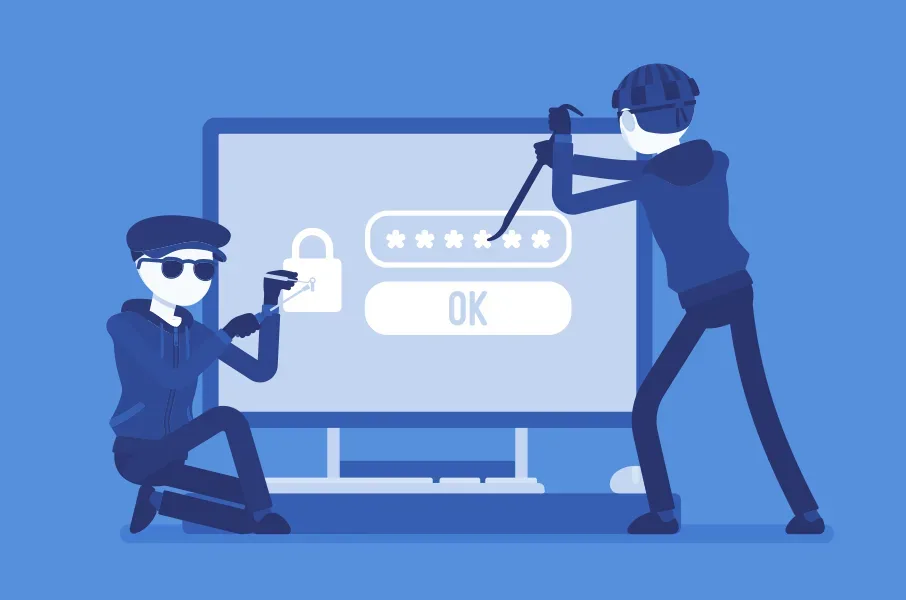
To prevent strangers from accessing your email, messenger, or social media accounts, you don’t need to be a technology expert. Most security features are already built into familiar services — you just need to enable them. We’ve gathered simple settings for Google, Apple, Telegram, WhatsApp, and Instagram. It will take one free evening, and your accounts will become significantly more secure.
Two-Factor Authentication
This is the second “lock” after your password. Even if someone learns your password, they won’t be able to log in without confirmation from the owner’s phone. In your Google account, enable the function like this: open “Google Account,” go to “Security and Sign-in,” and in the “Sign in to Google” section, select two-factor authentication.
The most convenient way to confirm is via a notification on your phone: simply tap “Yes” if the login request came from you, or “No” if it didn’t. SMS codes also work, but they offer weaker protection against SIM-swapping fraud. In case you lose your phone, make sure to save your eight-digit backup codes.
Passkeys Instead of Passwords
A passkey allows you to log in to your account using a fingerprint, facial recognition, or screen PIN. It cannot be written down on paper or accidentally sent to a scammer, making it highly effective against phishing — fake login pages.
For Google, compatible devices include smartphones running Android 9 and iOS 16 or later, as well as computers with Windows 10, macOS Ventura, or ChromeOS 109 or later. On Apple devices, passkeys sync via iCloud Keychain and work across all of the owner’s gadgets. Create passkeys only on personal devices: anyone who can unlock the device will also be able to access the account.
Backup Phone, Email, and Recovery Contact
These details help you quickly regain access if you forget your password or if an unauthorized person logs into your account. In Google, add them in the “Security and Sign-in” section: a backup phone number, a backup email (which must differ from your primary one), and a recovery contact — a close person who can help you log in if something goes wrong.
New numbers or email addresses take effect within seven days. This pause gives the owner time to notice if changes were made by someone else.
Where to add: myaccount.google, support.google.com
Check Saved Passwords
Using the same password across all websites is a common cause of breaches. The built-in check in Google’s password manager highlights three types of issues: passwords that have appeared in data breaches, overly simple passwords, and passwords reused across multiple accounts.
Run the check in the Chrome browser via the “Passwords and Autofill” section or on the password manager website. You can also enable notifications there: the service will alert you if any saved password ends up in the public domain.
Where to check: support.google.com
List of Devices with Account Access
Every few months, it’s useful to check where you’re logged in. In Google, this is found under “Security and Sign-in” → “Your Devices” → “Manage all devices.” If the list includes an old phone, an unfamiliar computer, or an unknown browser, you can end that session with a single click.
In Telegram, a similar list is located in “Settings” → “Devices.” There, you can also end all sessions except the current one.
Where to view: support.google.com
Additional Password in Telegram and WhatsApp
Usually, messengers allow login via an SMS code. To ensure a phone number alone isn’t enough, add a second layer of protection.
In Telegram, go to “Privacy” and enable the cloud password (two-step verification), specifying an email for recovery. This email should also be protected by a strong password. Additionally, in Telegram, you can create a passkey and log in using a PIN, fingerprint, or face ID — entirely without SMS.
In WhatsApp, the path is: “Settings” → “Account” → “Two-Step Verification” → “Enable.” The user creates a six-digit PIN and optionally adds an email to reset it if forgotten. After this, the number cannot be linked to another phone without the PIN.
More details: telegram.org
Two-Factor Authentication in Instagram
In Instagram, protection is enabled via the “Accounts Center”: Profile → Menu → “Accounts Center” → “Password and Security” → “Two-Factor Authentication.” Then select the account and confirmation method: SMS, authenticator app, or WhatsApp. To receive codes via WhatsApp, first enable the SMS option.
After setup, when logging in from an unfamiliar device, Instagram will request a code. In the same section, you can view login requests and a list of trusted devices, which can be removed.
Automatic Updates
System updates close vulnerabilities that attackers could exploit to access your data. It’s easiest to let your phone handle them automatically.
On iPhone: “Settings” → “General” → “Software Update” → “Automatic Updates” → “Install Automatically.” Your smartphone will then install updates overnight while charging and connected to Wi-Fi, notifying you in advance. On Android, check for updates in “Settings” → “System” → “Software Update”; most security updates install automatically. Menu names may vary slightly depending on the manufacturer.
More details: support.google.com
All these settings require no special knowledge and are set up once. Simply dedicate a little time today to enjoy peace of mind when using email, messengers, and social networks.
The Tech on Telegram Follow The Tech on Telegram
Keep up with the latest technology and startup news.
Related reading




More from this author

Article Useful
500 Global: How the Accelerator Works and Who Can Receive Investments
The Tech

Article Interviews
Game Development in Central Asia: Arkady Moldavski on Developing Reverb and the Growth of the Industry
The Tech

Article Useful
Google, Tesla, BlackRock, and the IMF: Where to Apply for an Internship in Fall 2026
The Tech

News IT
Tesla unveiled the flying electric car Roadster
The Tech

News IT
Intero Biosystems startup won the Startup Battlefield at TechCrunch Disrupt 2026
The Tech

News IT
In Astana, Meta representatives visited Astana Hub and alem.ai
The Tech